
Connect ChatGPT
Trayflux is a list app for shopping, to-dos and whatever you need to remember. Connect ChatGPT to it once, and you can ask ChatGPT to make and update your lists.
Pictures taken on . ChatGPT's screens change, so trust the words on your screen over a picture. Choose a picture of ChatGPT to open it at full size.
Before you start
Check your plan first
You need a ChatGPT plan that lets a custom plugin make changes. OpenAI currently offers that on Business, Enterprise and Edu, and on Business an owner or admin turns it on. OpenAI's guide to developer mode has the current rules.
Before the first step
You need a Trayflux account. Trayflux is invite-only at the moment, so ask for access if you don't have one.
Sign in to Trayflux in the browser you use for ChatGPT.
Use ChatGPT on the web. Its phone apps can't add a custom plugin.
You add Trayflux by its address, as a custom plugin. It isn't in ChatGPT's directory yet.
Steps
-
Open Plugins
In ChatGPT, open Plugins.
-
Choose Add, then Add custom MCP server
Choose Add, then Add custom MCP server.

-
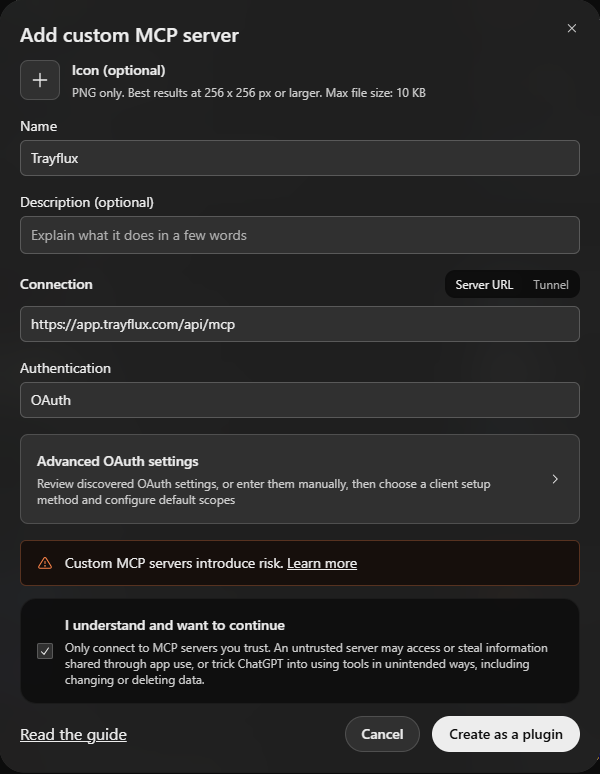
Enter the name and the address
Type Trayflux as the name and paste this address under Connection. Leave Authentication as OAuth.
https://app.trayflux.com/api/mcp -
Accept the warning and create the plugin
Read ChatGPT's warning about custom servers, tick I understand and want to continue, and choose Create as a plugin.
-
Choose Continue to Trayflux
ChatGPT asks you to connect. Choose Continue to Trayflux.
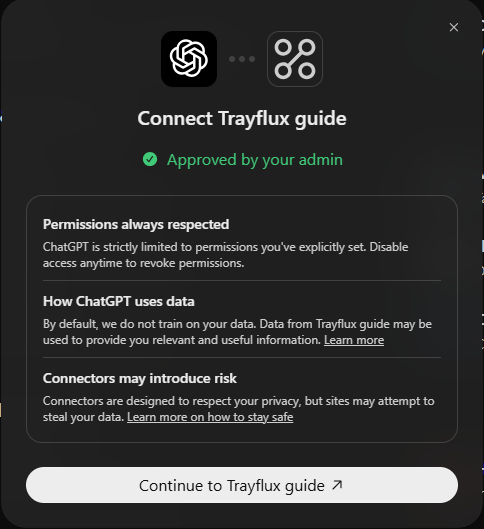
In this picture the plugin was named Trayflux guide. Yours shows the name you typed. -
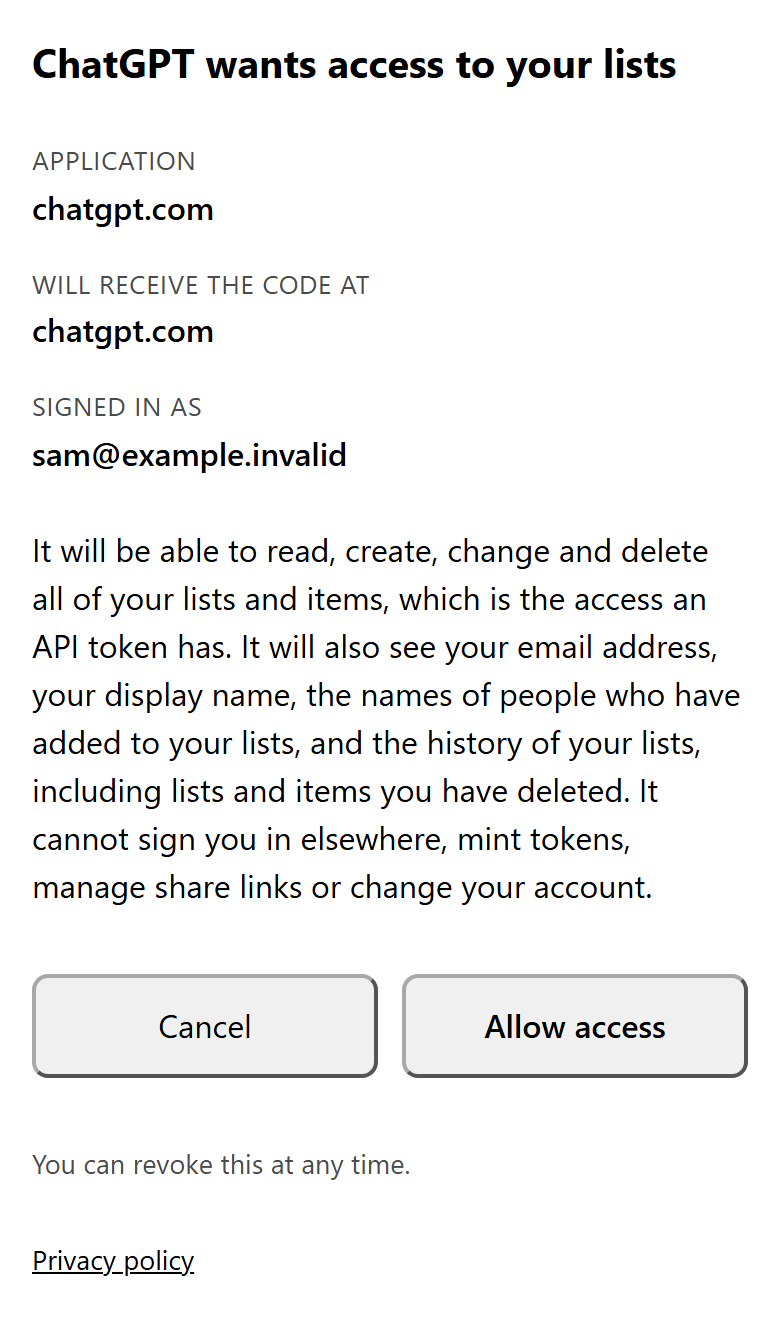
Allow access in Trayflux
ChatGPT opens Trayflux, which asks whether ChatGPT may reach your lists. Check that the page names ChatGPT, then choose Allow access.

Check it worked
In a new chat, choose + and pick Trayflux from the list. Then send ChatGPT a recipe and ask it to put the ingredients on your shopping list.
Example: what you send ChatGPT
Lemon and tomato spaghetti, for two
- 200 g spaghetti
- 250 g cherry tomatoes
- 2 cloves garlic
- 1 lemon
- 40 g Parmesan
- 1 bunch basil
Add the ingredients for this recipe to my shopping list.
ChatGPT may ask you to confirm before it changes anything. That question comes from ChatGPT. Then open your Shopping list in Trayflux. The ingredients are there, each with its quantity and its supermarket aisle.

What ChatGPT can do now
ChatGPT can read and change all of your lists, and that includes deleting them. It can also see your email address, your name, the names of people who have added to your lists, and the history of your lists, including lists and items you've deleted in the last 30 days. Trayflux asked you once, when you connected. It doesn't ask again for each change.
Disconnect
To end the connection, open Settings in Trayflux, find the row that names chatgpt.com under Connected apps, and choose Disconnect. ChatGPT needs to be online to reach your lists.

Get help
If a step doesn't match what you see, tell us where it stopped. To see what else Trayflux does, go to the home page.