
Install on iPhone
Put Trayflux, the list app, on your iPhone's home screen. It then opens in its own window, like any other app.
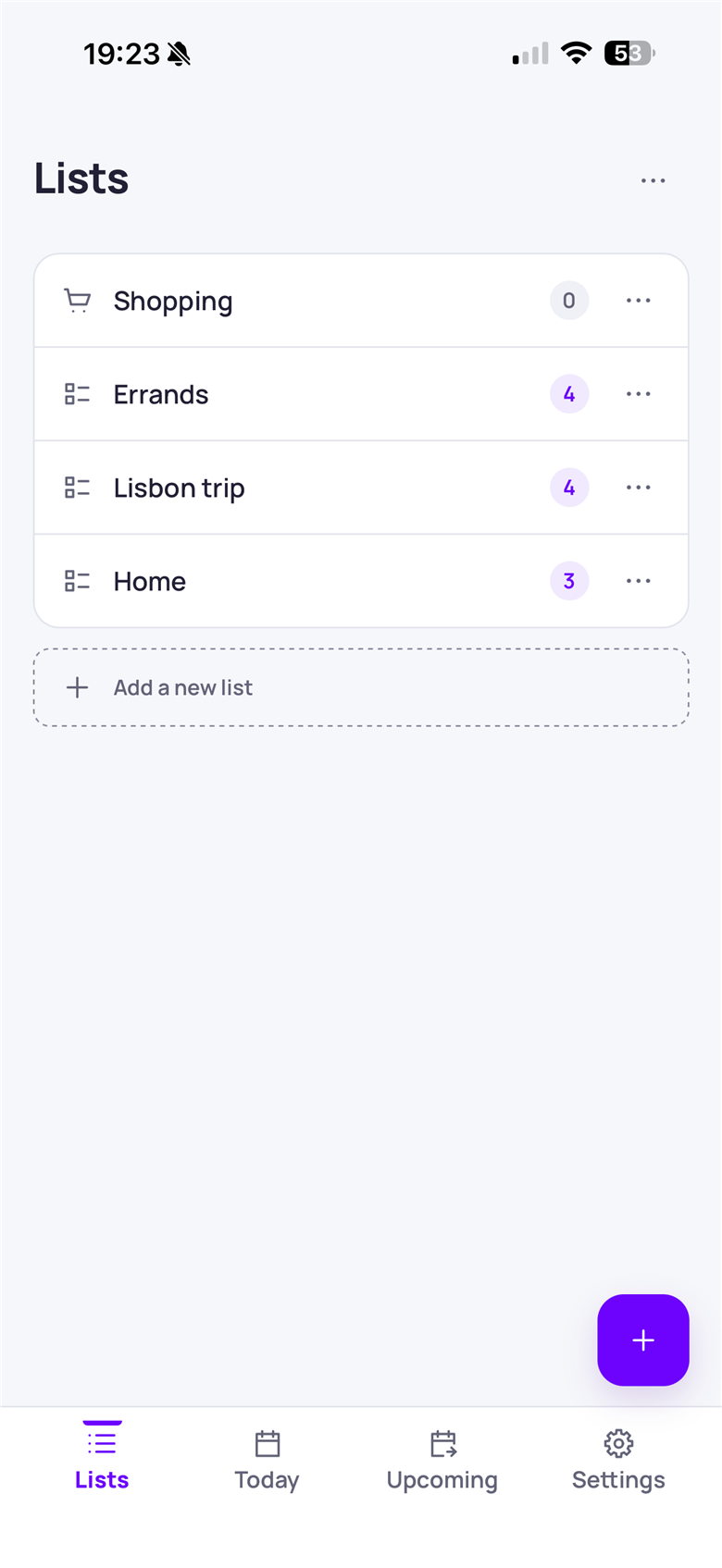
Pictures taken on , with Safari on an iPhone. Choose a picture to open it at full size.
Before you start
You need a Trayflux account. Trayflux is invite-only at the moment, so ask for access if you don't have one.
These steps are for Safari. Other browsers on an iPhone have their own menus.
You install Trayflux from the browser. It isn't in the App Store yet.
The steps are the same on an iPad.
Steps
-
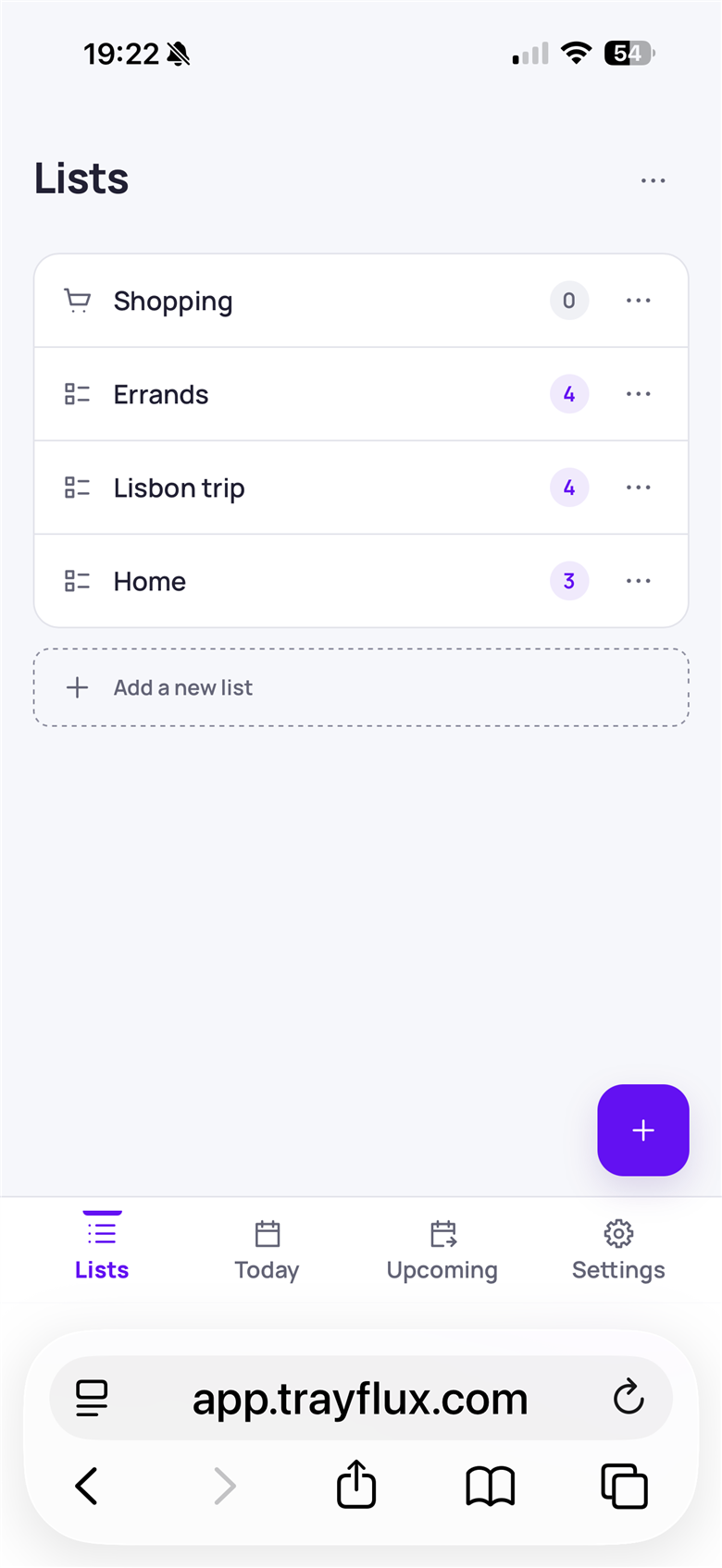
Open Trayflux in Safari
Open Trayflux in Safari and sign in.
-
Tap the Share button
Tap the Share button, the square with an arrow, in Safari's bar.
-
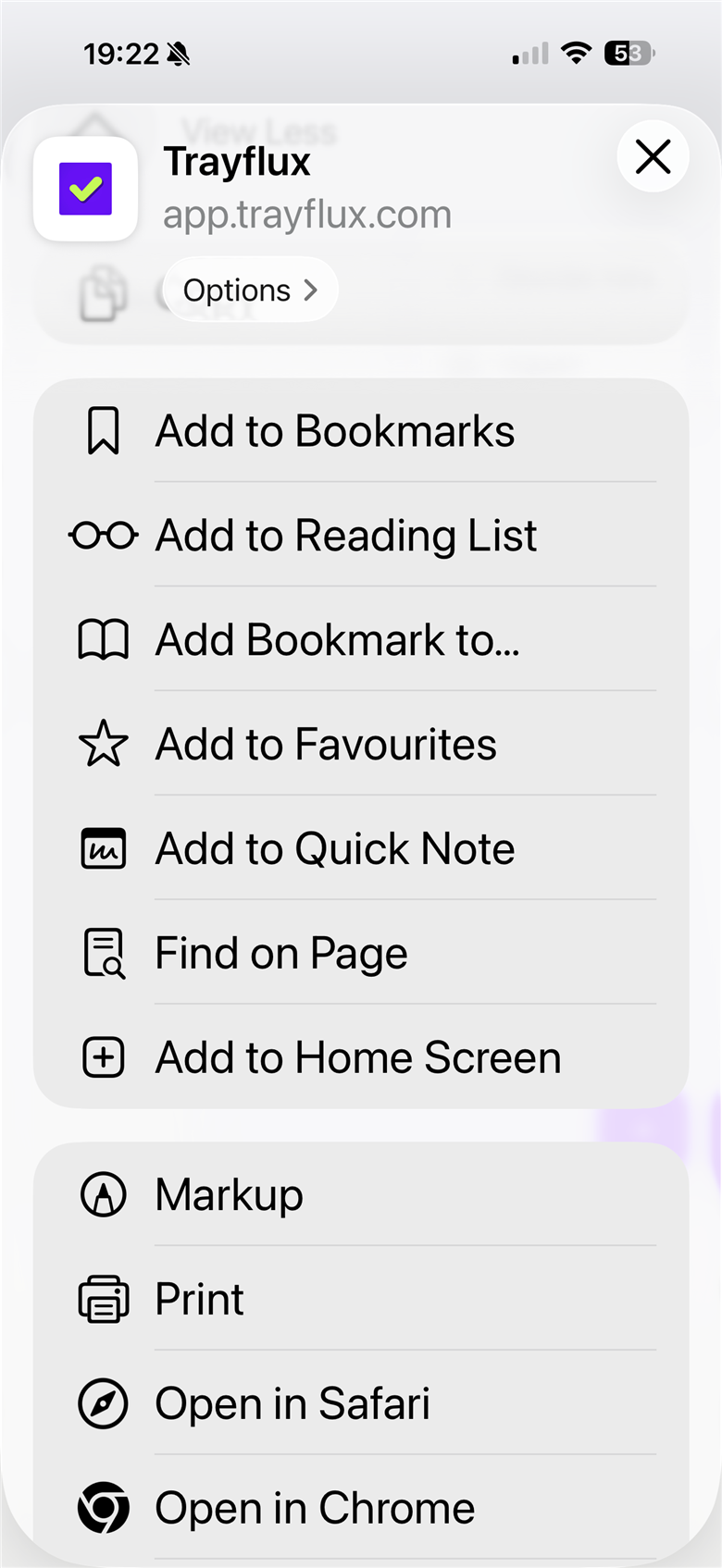
Choose Add to Home Screen
Scroll down the menu and tap Add to Home Screen.
-
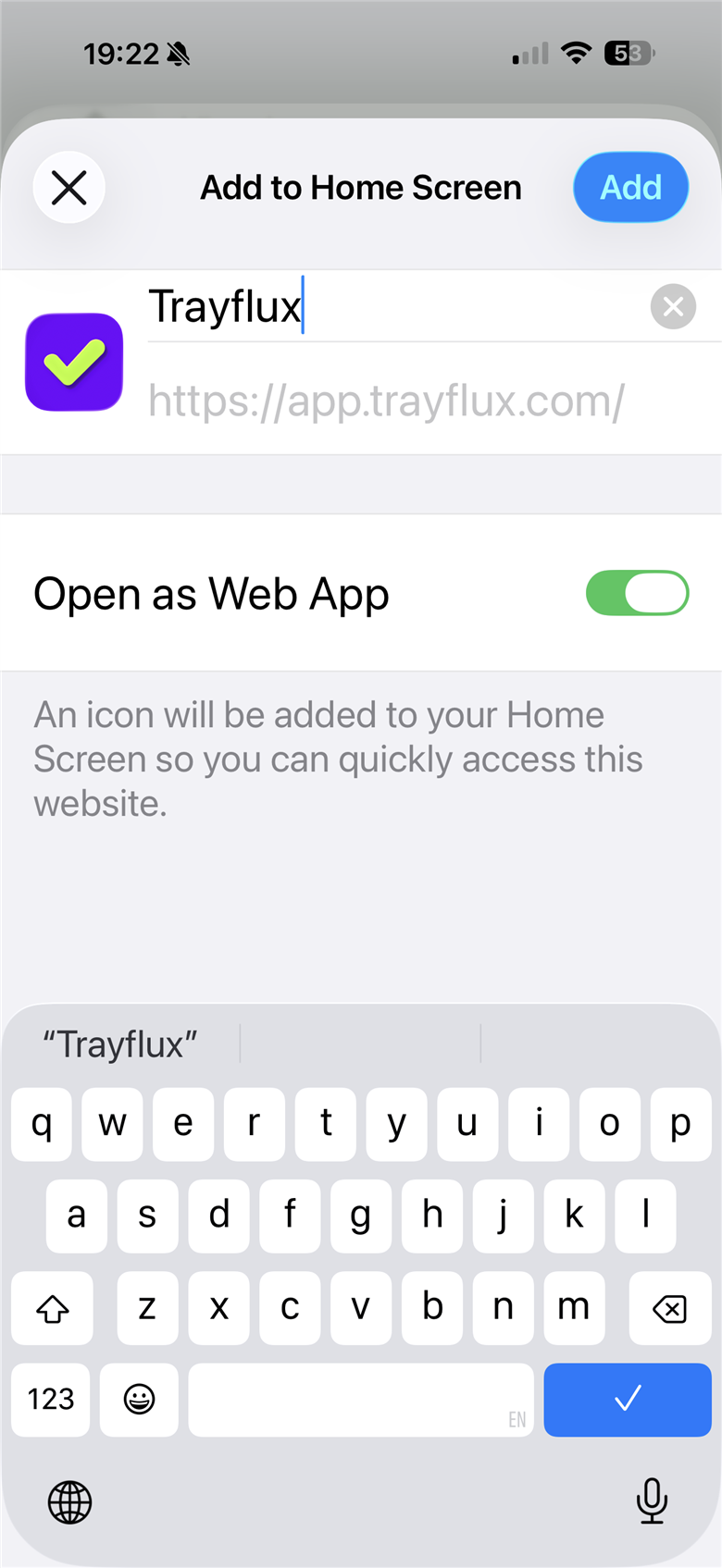
Keep Open as Web App on, then tap Add
Leave Open as Web App on, then tap Add.
-
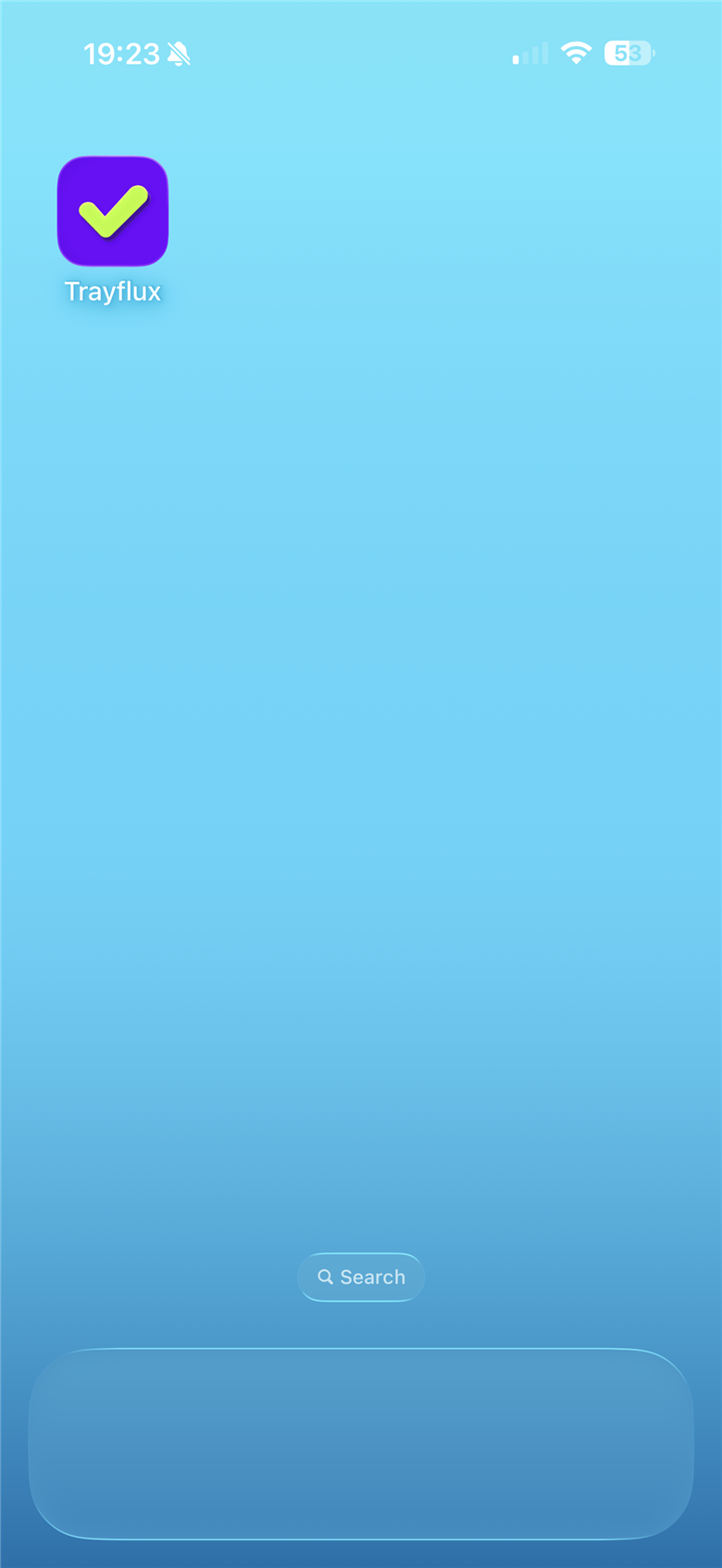
Open Trayflux from your home screen
Find Trayflux on your home screen and open it.
Check it worked
Trayflux opens on your lists in its own window, with no Safari bar. Once you've opened it here, your lists are kept on the phone, so you can read them, add to them and tick things off without signal. Your changes sync when you're back online.
Safari's menus change between versions of iOS. Apple's guide to adding a website to your Home Screen has the current names.
Get help
If a step doesn't match what you see, tell us which iPhone and which version of iOS you have. To see what Trayflux does once it's installed, go to the home page.